 HioBuy
How to Enable Password-Free Payment on 1688 with Alipay
Step-by-step Buyer Workbench guide for B2B teams to enable 1688 Alipay password-free (batch) payment—with Chinese UI labels, safety caveats, screenshots, and video.
How to Enable Password-Free Payment on 1688 with Alipay
For B2B procurement teams, sourcing platforms, and high-frequency 1688 buyers, payment confirmation is often a hidden bottleneck. Each order may require jumping to Alipay, entering a payment password, confirming, and returning to 1688. That is acceptable for occasional purchases. At dozens or hundreds of orders per day, it slows batch purchasing and order fulfillment.
Password-free payment (免密支付) lets an eligible 1688 buyer account complete supported Alipay payments without re-entering the payment password every time. Once enabled under Batch Password-Free Settings, supported orders can be paid faster—especially in batch workflows.
This guide walks through the exact Buyer Workbench steps, with Chinese UI labels and English glosses, plus a short video at the end.
Why enable it for procurement workflows?
Without password-free payment, the loop often looks like:
Place order → Open Alipay → Enter password → Confirm → Return to 1688 → Repeat
Password-free payment helps teams:
- Reduce repeated manual payment confirmation
- Speed up batch order processing
- Cut delays caused by password entry on every order
- Smooth 1688 purchasing for dropshipping, wholesale, and customer fulfillment
- Support more automated procurement operations
It is especially useful when the team sources from 1688 regularly for platform or client orders—not for one-off C-end shopping.
Before you start
Confirm you have:
- A 1688 buyer account
- An Alipay account already linked to that 1688 account
- Access to the 1688 Buyer Workbench
- The Alipay payment password
- Permission to change payment authorization settings for the account
Company / shared accounts: only enable this if the operator has internal authorization. Password-free payment improves speed; it does not replace payment limits, role permissions, or reconciliation.
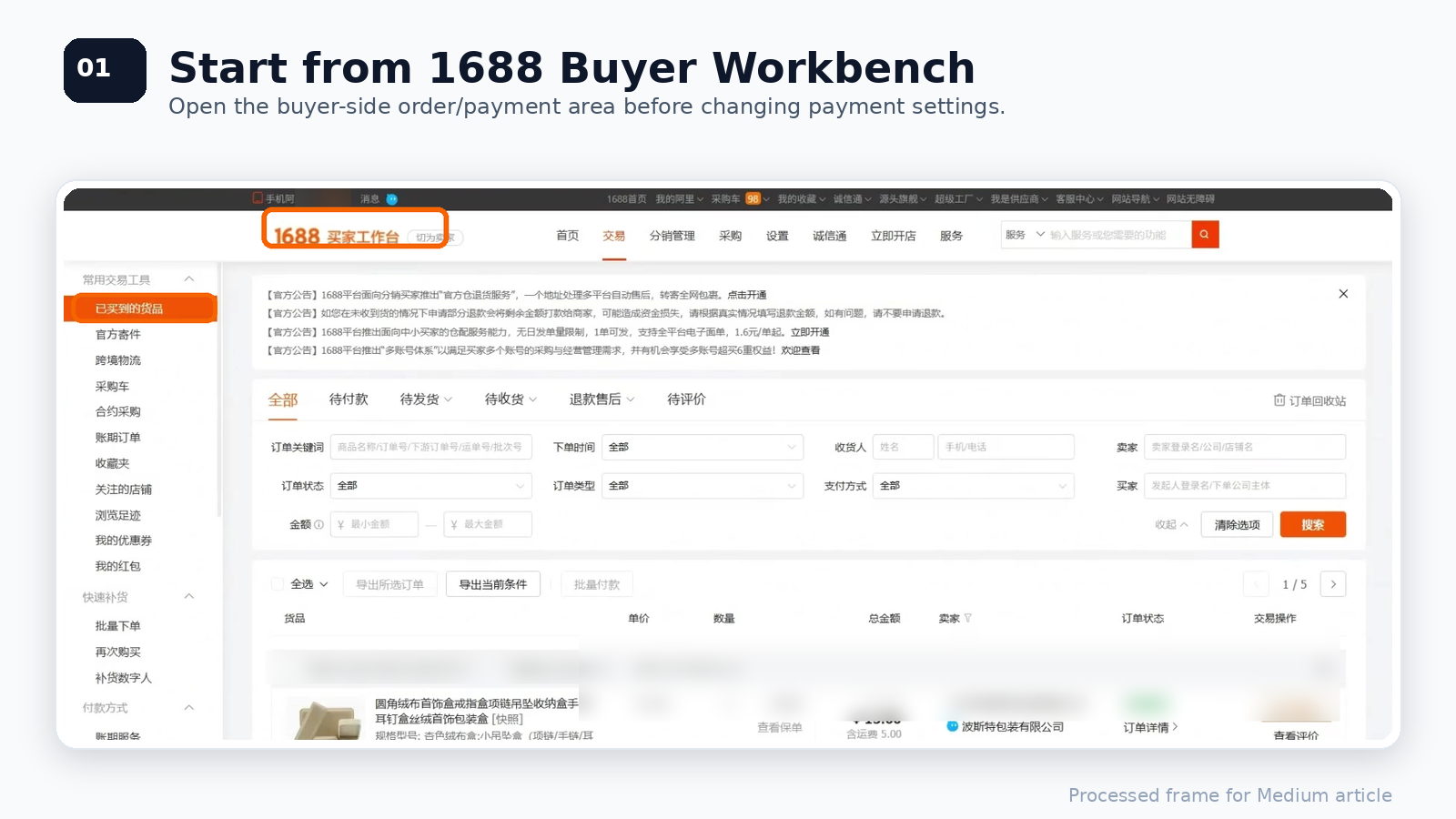
Step 1: Open the 1688 Buyer Workbench
Log in to 1688 and open the Buyer Workbench.
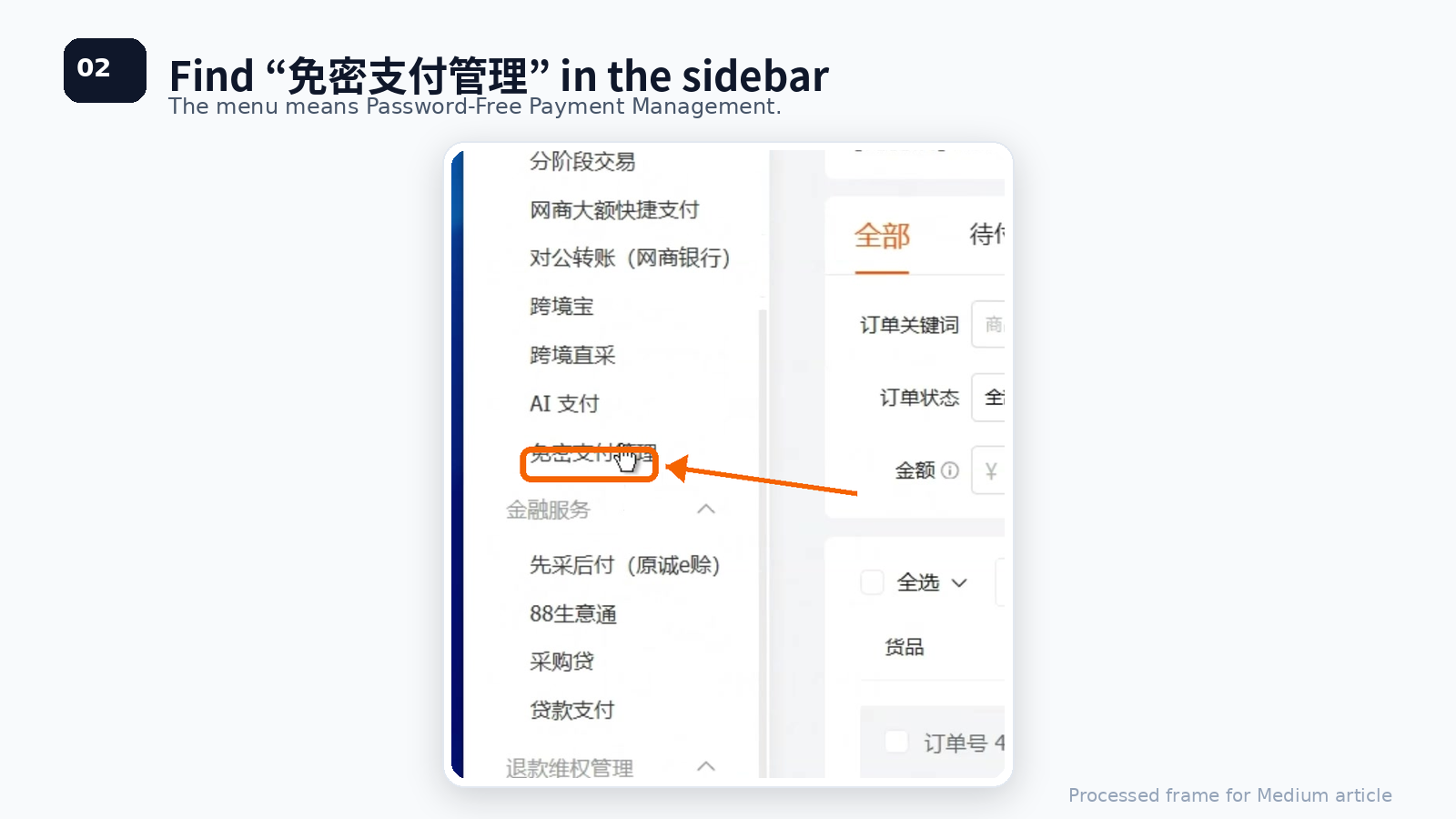
On the left sidebar, find the payment-related section. The menu label to open is:
免密支付管理 — Password-Free Payment Management
Step 2: Open Batch Password-Free Settings
After opening 免密支付管理, you will see password-free payment settings.
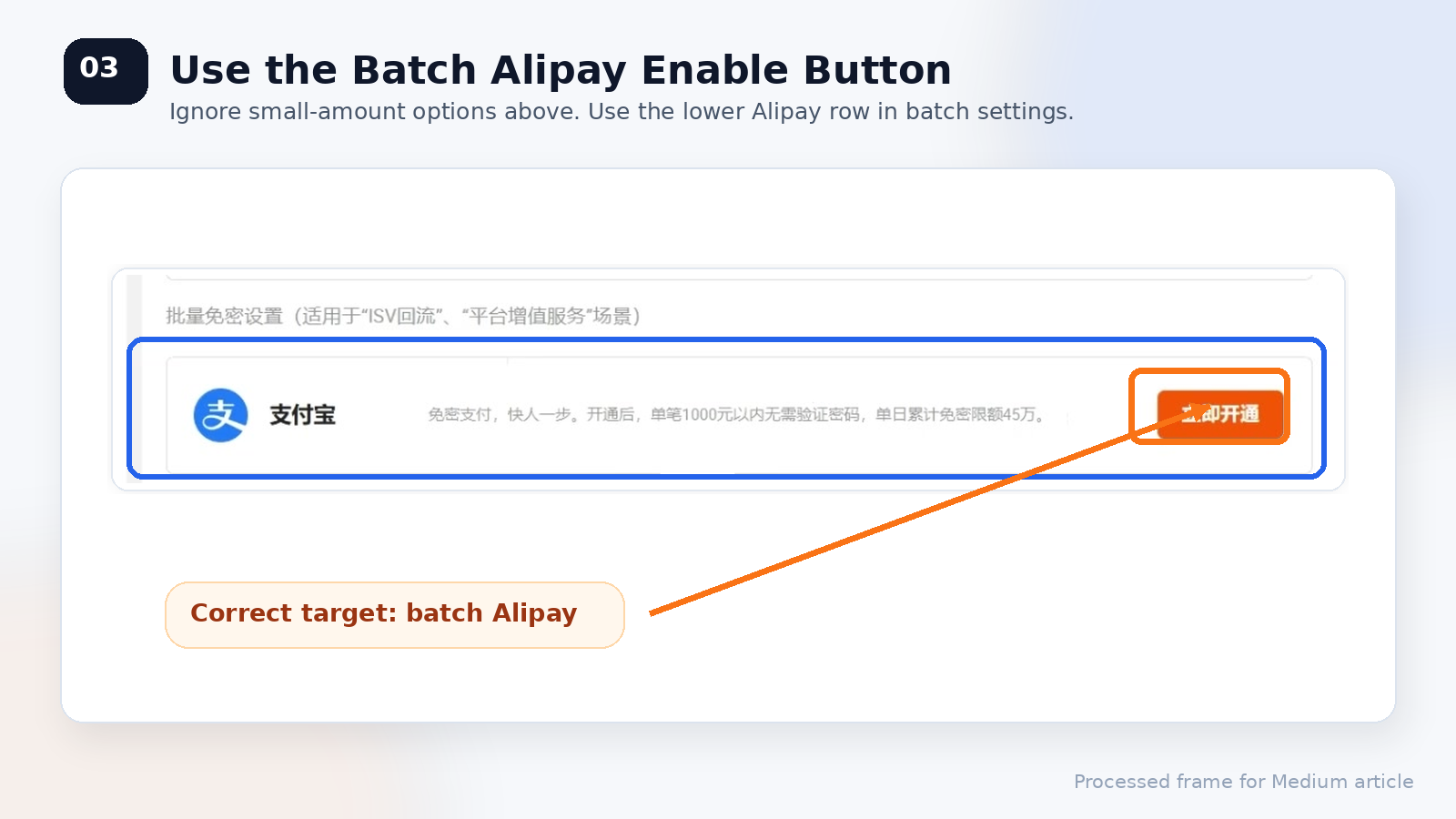
The page may show more than one section. Do not use the small-amount password-free section at the top.
Use the lower section named:
批量免密设置 — Batch Password-Free Settings
Under that section, locate the Alipay row.
Step 3: Click 立即开通 next to Alipay
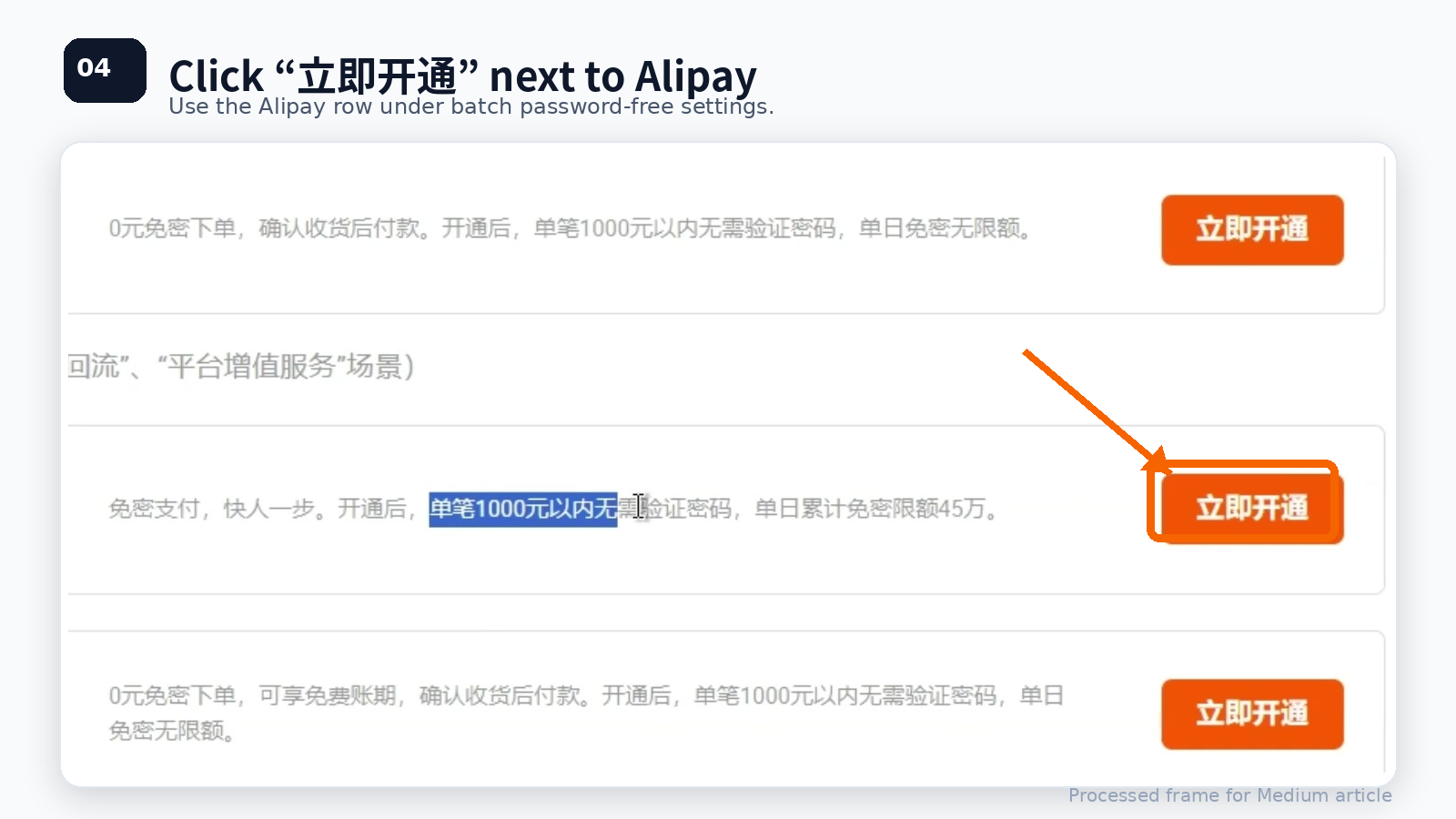
In 批量免密设置, on the Alipay row, click the orange button:
立即开通 — Enable Now
Make sure you click the control next to Alipay under the batch section—not an option in the small-amount section above.
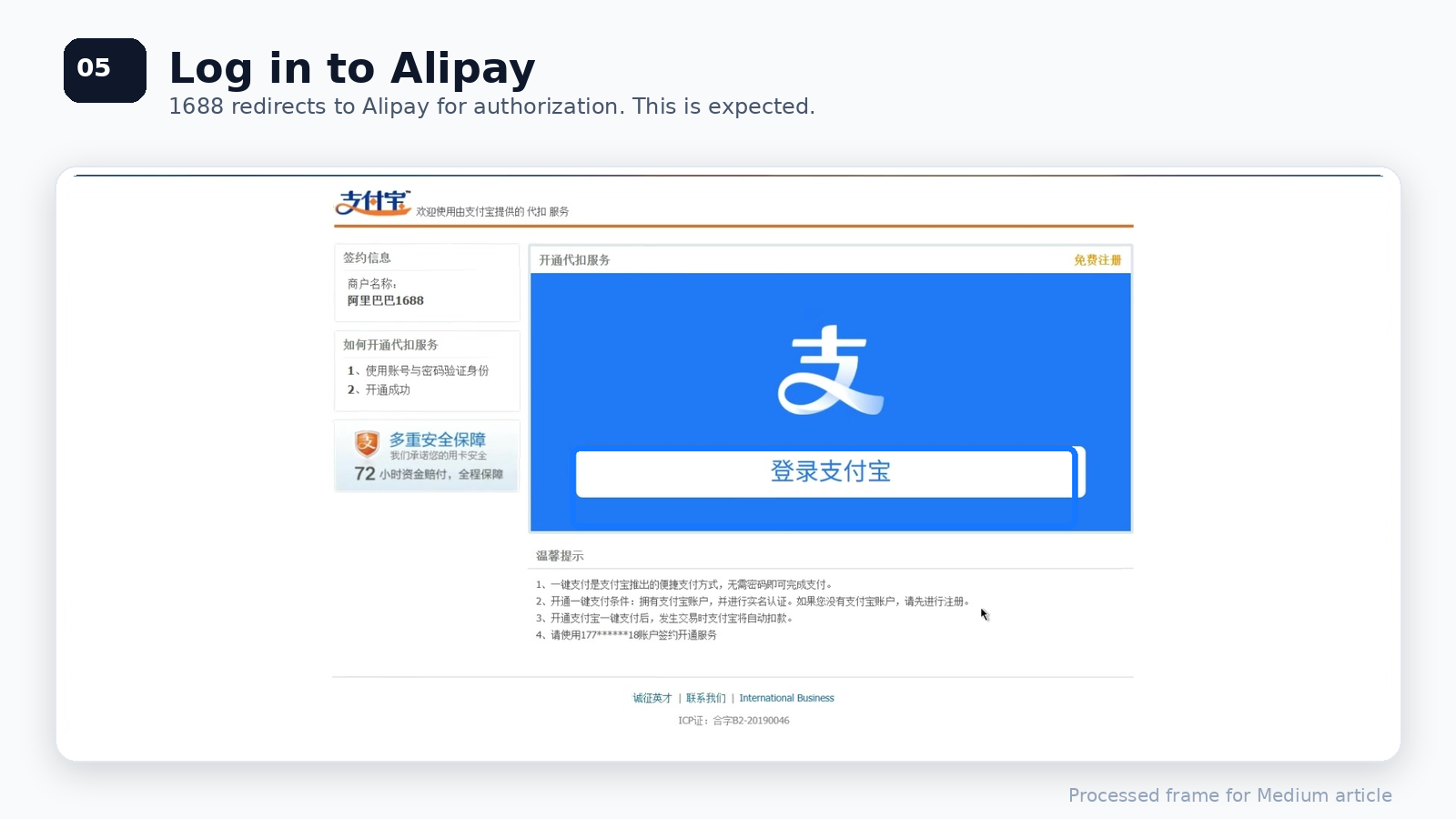
Step 4: Log in to the correct Alipay account
1688 redirects to an Alipay authorization page. Use the large Log in to Alipay button or QR login, whichever matches your workflow.
For business accounts, log in with the Alipay account linked to this 1688 buyer account—not a personal wallet used for something else.
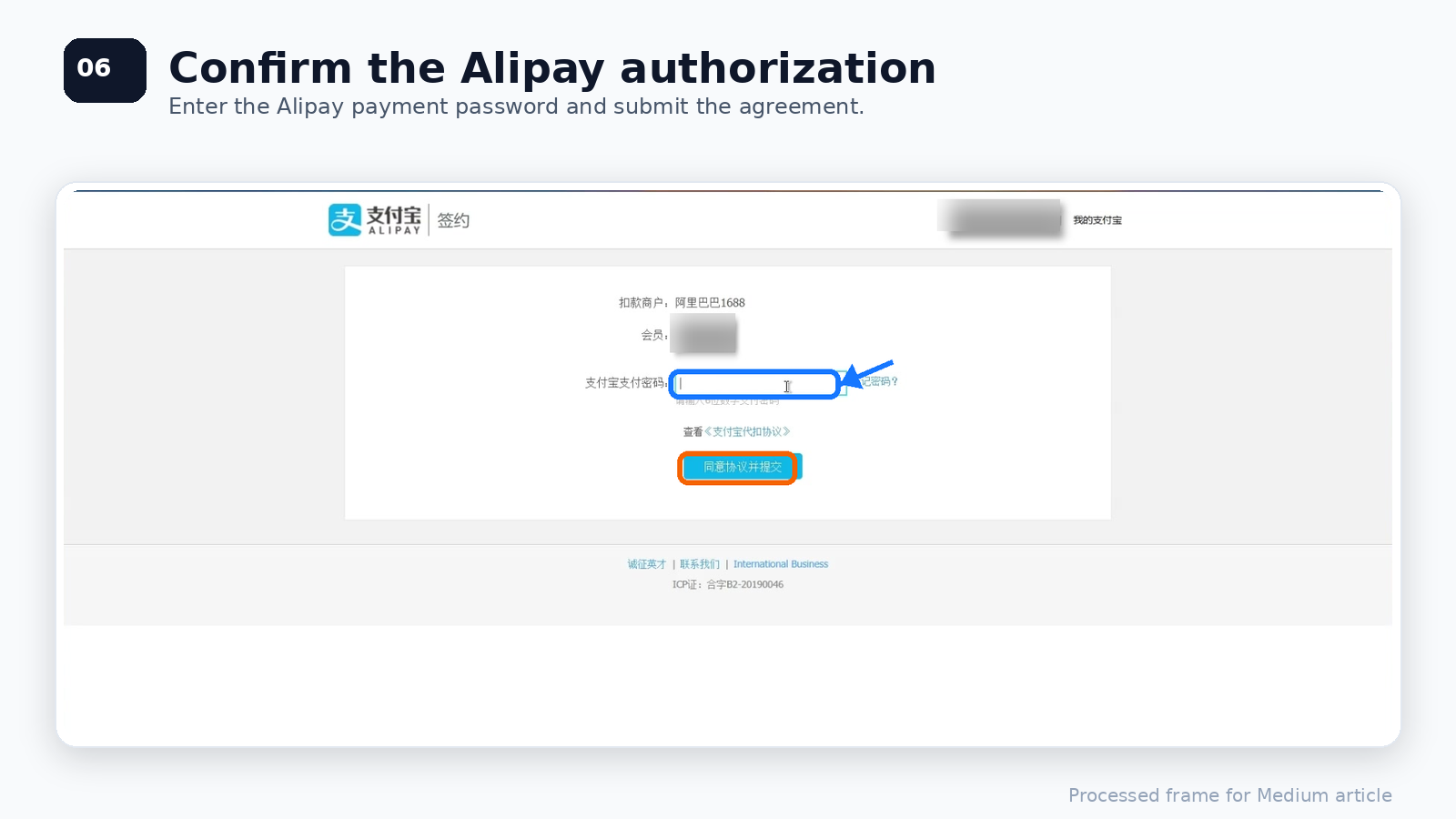
Step 5: Confirm authorization with the payment password
Alipay asks you to authorize automatic deduction / password-free payment. Enter the Alipay payment password (typically the 6-digit payment PIN), then confirm.
The confirmation control is usually labeled:
同意协议并提交 — Agree to the agreement and submit
Review the agreement and confirm which account is being authorized before submitting.
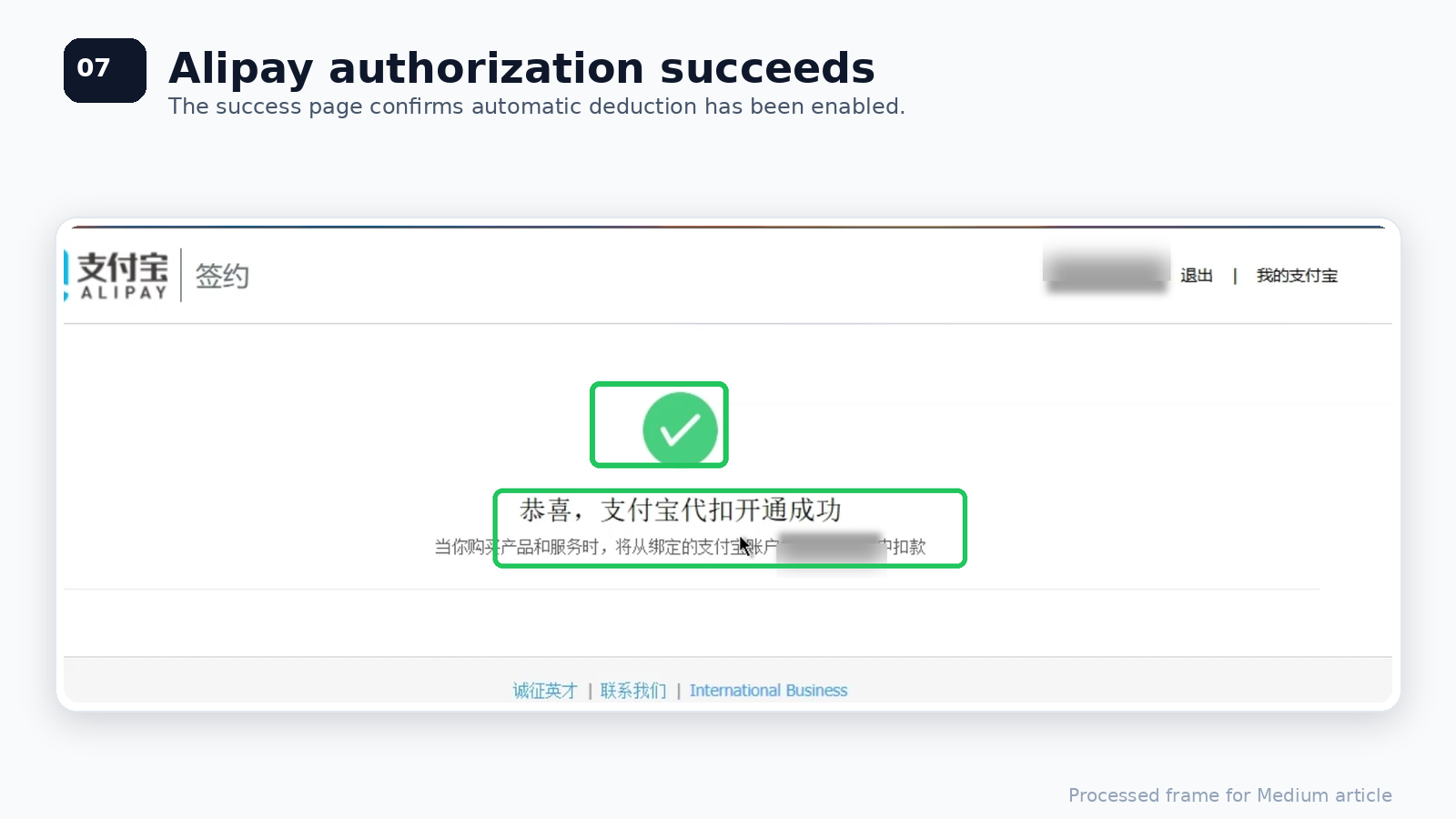
Step 6: Check the Alipay success page
When authorization succeeds, Alipay shows a success state such as:
支付宝代扣开通成功 — Alipay automatic deduction has been enabled successfully
At this point the Alipay side of the setup is done.
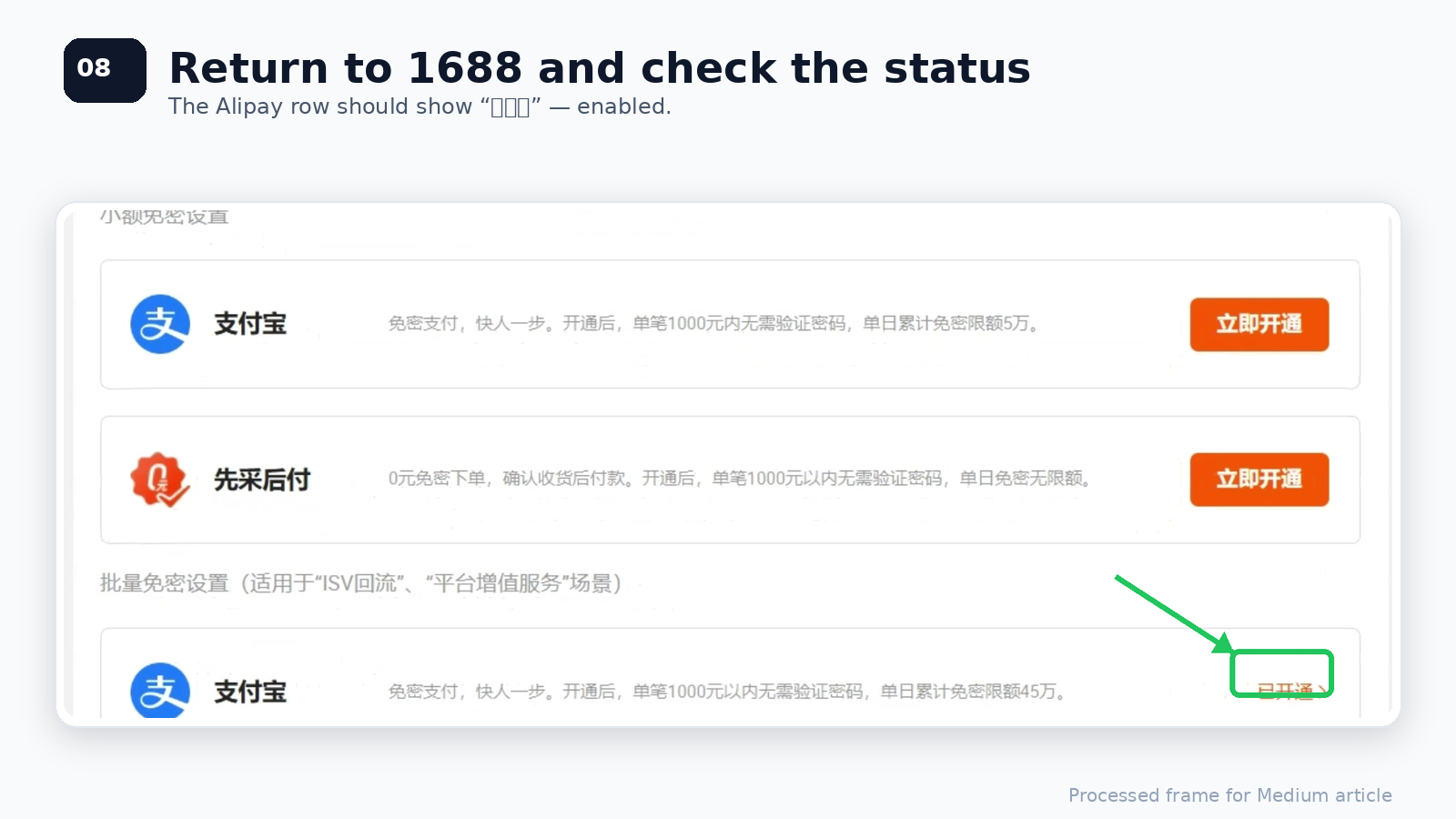
Step 7: Return to 1688 and verify status
Go back to the 1688 Buyer Workbench password-free settings page.
On the Alipay row under 批量免密设置, the status should show:
已开通 — Enabled
Your 1688 account can now use password-free payment for supported Alipay scenarios (subject to limits and order eligibility).
Common issues
Cannot find 免密支付管理
Stay in the 1688 Buyer Workbench, not the general homepage. Expand the payment-related sidebar if it is collapsed.
Alipay authorization page does not open
Refresh, try another browser, or disable extensions that block pop-ups/redirects. Logging into Alipay first, then repeating the 1688 setup, often helps.
Enabled, but 1688 still asks for a password
Typical causes:
- Order amount exceeds the password-free limit
- The order does not support this payment method
- Alipay account does not match the 1688 buyer account
- Extra verification is required for that payment scenario
- The wrong password-free section was enabled (small-amount vs batch)
Re-check 免密支付管理 → 批量免密设置 → Alipay row shows 已开通.
Is password-free payment safe for company accounts?
It can be, with proper controls: avoid sharing personal Alipay passwords across the team; use role permissions, payment limits, and regular reconciliation. Efficiency should not replace financial control.
Video walkthrough
Prefer watching the clicks end-to-end? Use the recording below (hosted on the original guide; not re-uploaded).
Final notes
1688 password-free payment is a small Buyer Workbench setting with outsized impact for high-frequency procurement: less manual confirmation, faster batch payment, fewer stuck orders, and a smoother purchasing loop.
If the team buys on 1688 regularly, enabling Alipay under 批量免密设置 (Batch Password-Free Settings) is one of the first operational checks worth doing.
Building software on top of 1688 product or order data? See the HioBuy developer docs at developers.hiobuy.com for Product API and related integration guides—this article itself is an account-ops setup guide, not an API walkthrough.
Next step
If you already understand the workflow, move to the API reference for exact request and response fields, or open the developer console to create your application.
Ready to build?
Open the API documentation or create your HioBuy developer application.