 HioBuy
Bind a Credit Card on TaoWorld Before You Pay Taobao Orders
Bind a VISA or Mastercard in the TaoWorld purchasing console, including sub-accounts, so HioBuy order pay uses that account’s current payment method. The card is not an API field.
Bind a Credit Card on TaoWorld Before You Pay Taobao Orders
HioBuy can pay a Taobao procurement order only with the payment method already set on the TaoWorld purchasing account. Binding a credit card is a console step. It is not an HioBuy API field.
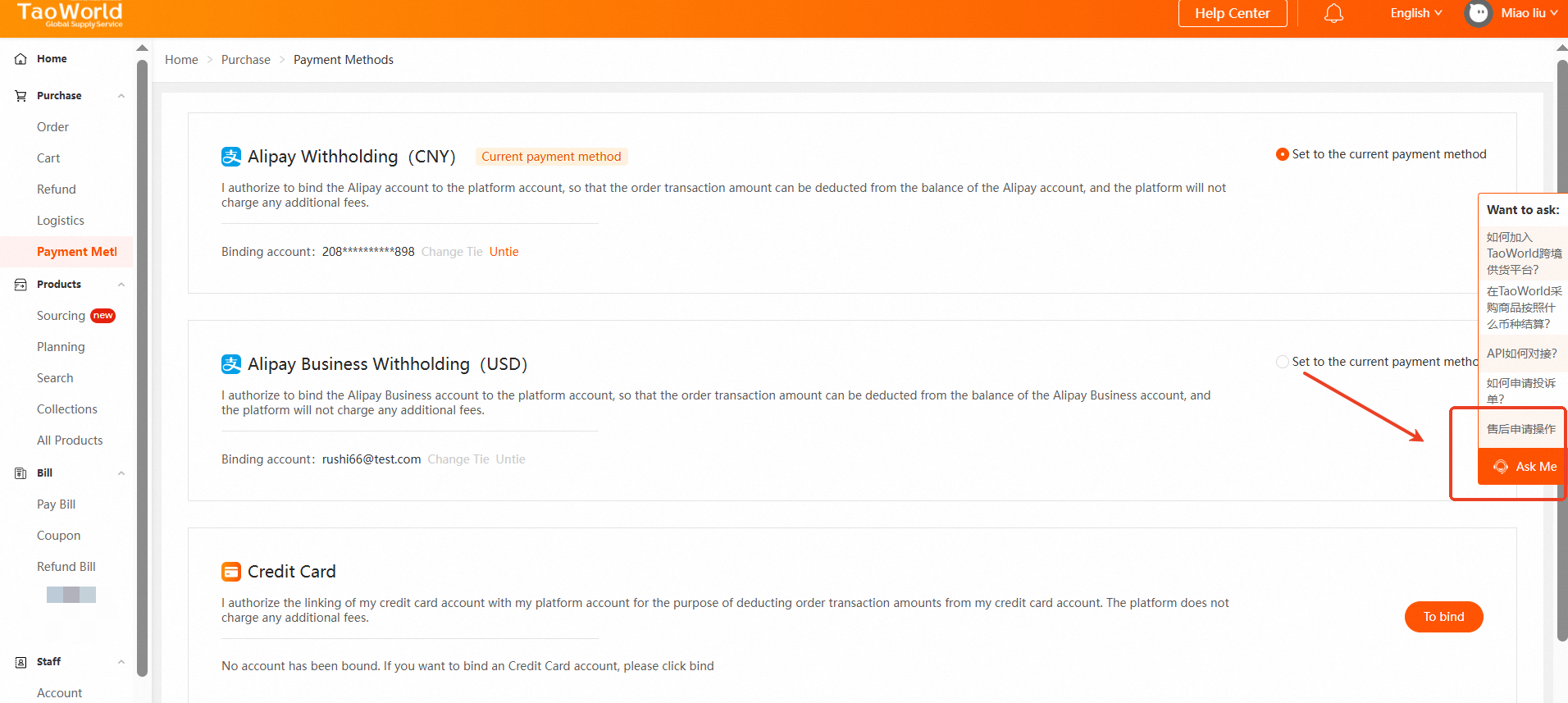
Do this in the TaoWorld purchasing console before you call pay. Alipay Withholding (CNY) and Alipay Business Withholding (USD) are separate rows on the same page. A credit card does not replace them, and the API does not choose among them.
TaoWorld console
    Home > Purchase > Payment Methods
    Bind the credit card
    Set Credit Card as the current payment method
        ↓
HioBuy
    POST /v1/orders/pay
    channel + order_id
        ↓
TaoWorld charges that account’s current payment method
Why this matters for API order pay
Pay order is POST /v1/orders/pay. On that route the body needs channel and order_id. For a Taobao purchase, channel is taobao. The order id is the main order id returned when the order was created. See Procurement orders overview.
{
  "channel": "taobao",
  "order_id": "ORDER_ID_FROM_CREATE"
}
Once Credit Card is that TaoWorld account’s current payment method, this call uses the account’s payment method. There is no card number, CVV, expiry, or card-brand field on the HioBuy request. If the console default is still Alipay, the API call does not switch it to the card.
Limits
These limits come from TaoWorld’s credit-card binding rules. Do not treat them as HioBuy request parameters.
- VISA and Mastercard only. The bind dialog header reads Support Card and shows those two marks. Supported currencies on that dialog is USD.
- Credit cards do not support red packets (红包).
- Not supported if the order amount has been modified.
- Sub-accounts that pay must bind too. A purchasing account with sub-accounts is not covered by the main account’s card alone. Each sub-account that will pay has to bind. A sub-account without payment privilege can show as bound and still be unable to pay.
- Issuer risk checks can block binding. If the bank’s risk control blocks the bind, contact the card issuer. The Chinese console states this as: 子账号绑定失败,请联系发卡机构检查信用卡状态后,重新绑定 (sub-account binding failed; contact the card issuer, check the card status, then bind again).
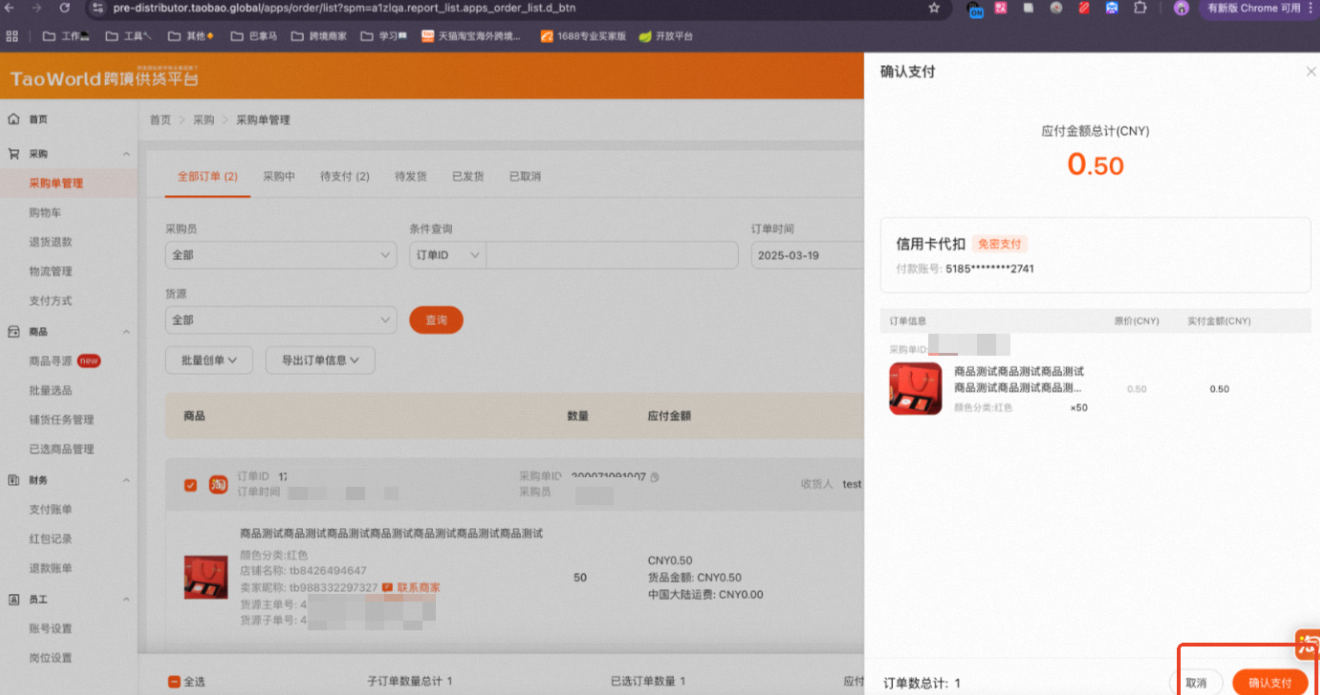
- After binding, the current payment method can pay without a second verification. That is password-free card withholding. The order-list screenshot is on
pre-distributor.taobao.globaland labels the method 信用卡代扣 with a 免密支付 tag.
The Credit Card row also says the platform does not charge any additional fees. That sentence is console copy. It is not an HioBuy price.
Bind the main account
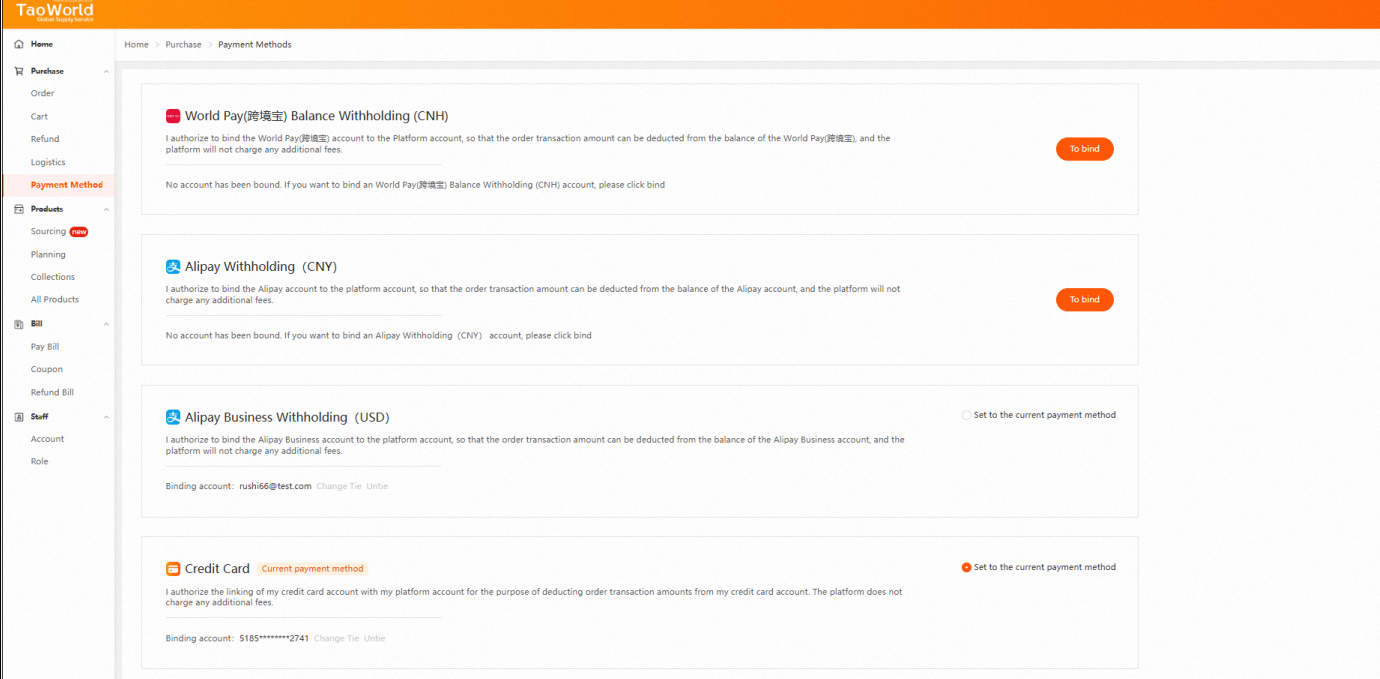
Open the purchasing console and go to Home > Purchase > Payment Methods. The left nav includes Payment Methods under Purchase (the English screenshots clip the nav label; use the breadcrumb).
On Payment Methods, ignore Alipay Withholding (CNY) and Alipay Business Withholding (USD). On some screens a World Pay (跨境宝) Balance Withholding (CNH) row is also present. Use the Credit Card row.
When no card is bound, that row says:
The button label is To bind, not Bind.
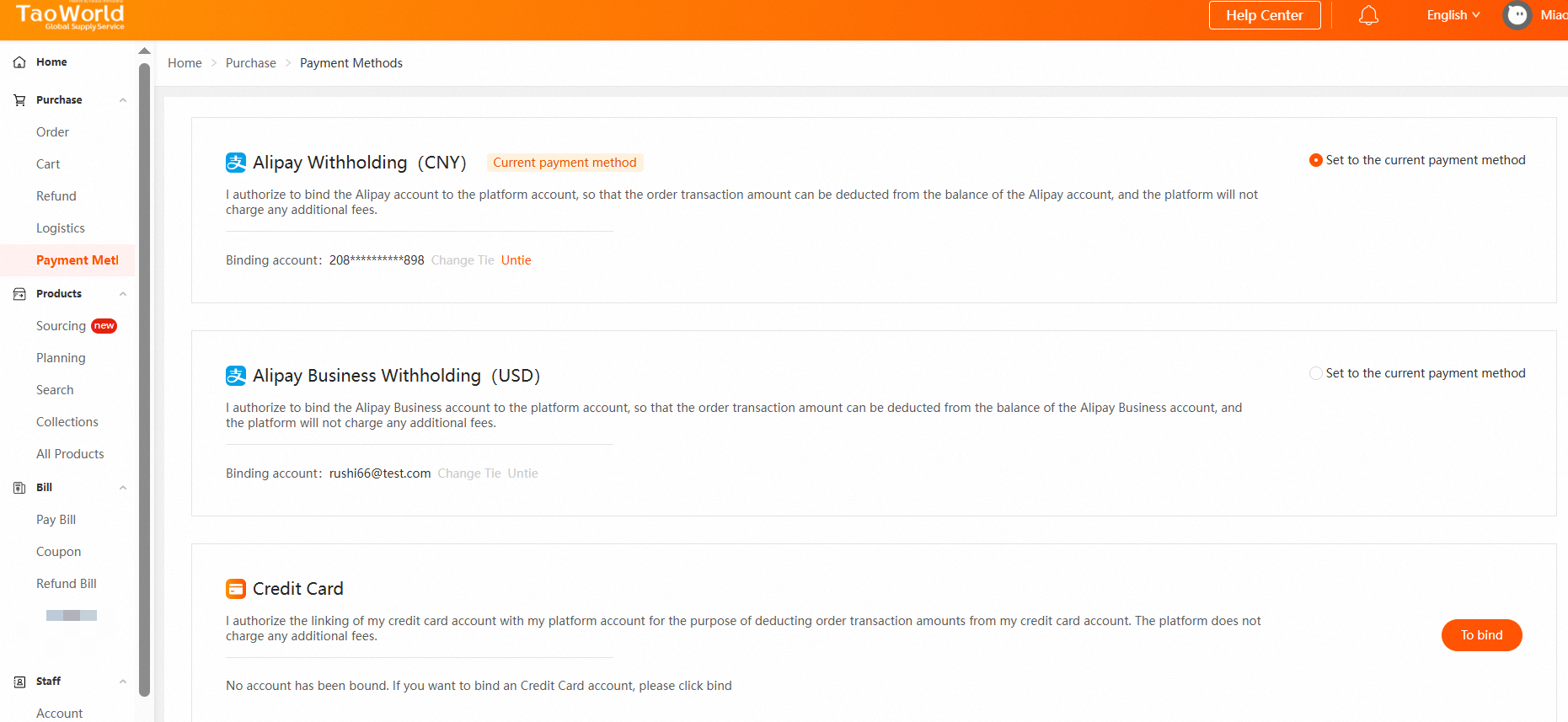
To bind opens a dialog titled BindingCredit Card (the title is shown without a space). Fields:
| Label | What to enter |
|---|---|
| Card number | The card number |
| Name of Cardholder | Name on the card |
| CVV code | Security code |
| Validity Period | Month and year, placeholders MM / YY |
Read and check:
Binding stays disabled until that box is checked. Cancel closes the dialog.
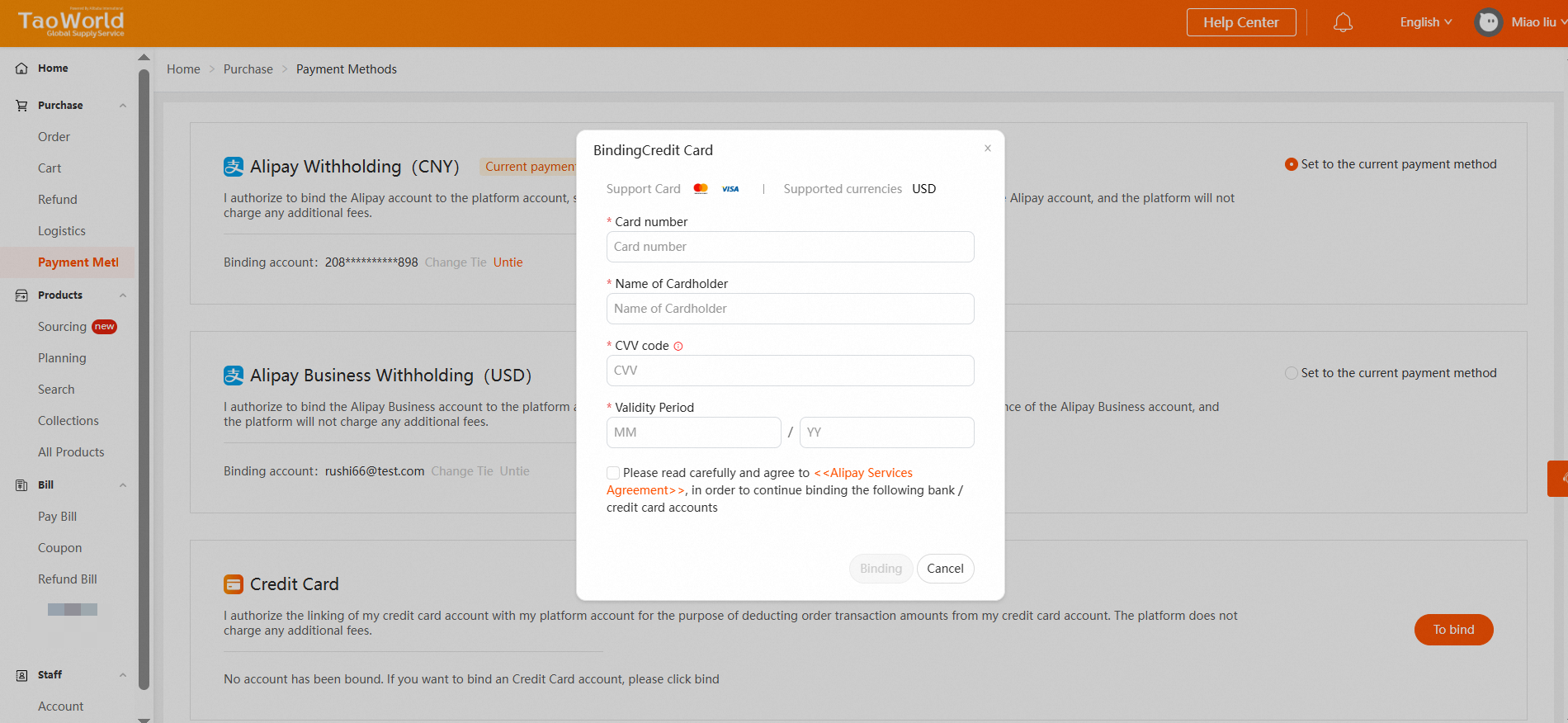
Check the agreement. Binding becomes the active button. In the source screenshot the card fields still show placeholders; the red box is an annotation on the agreement, not part of the form.
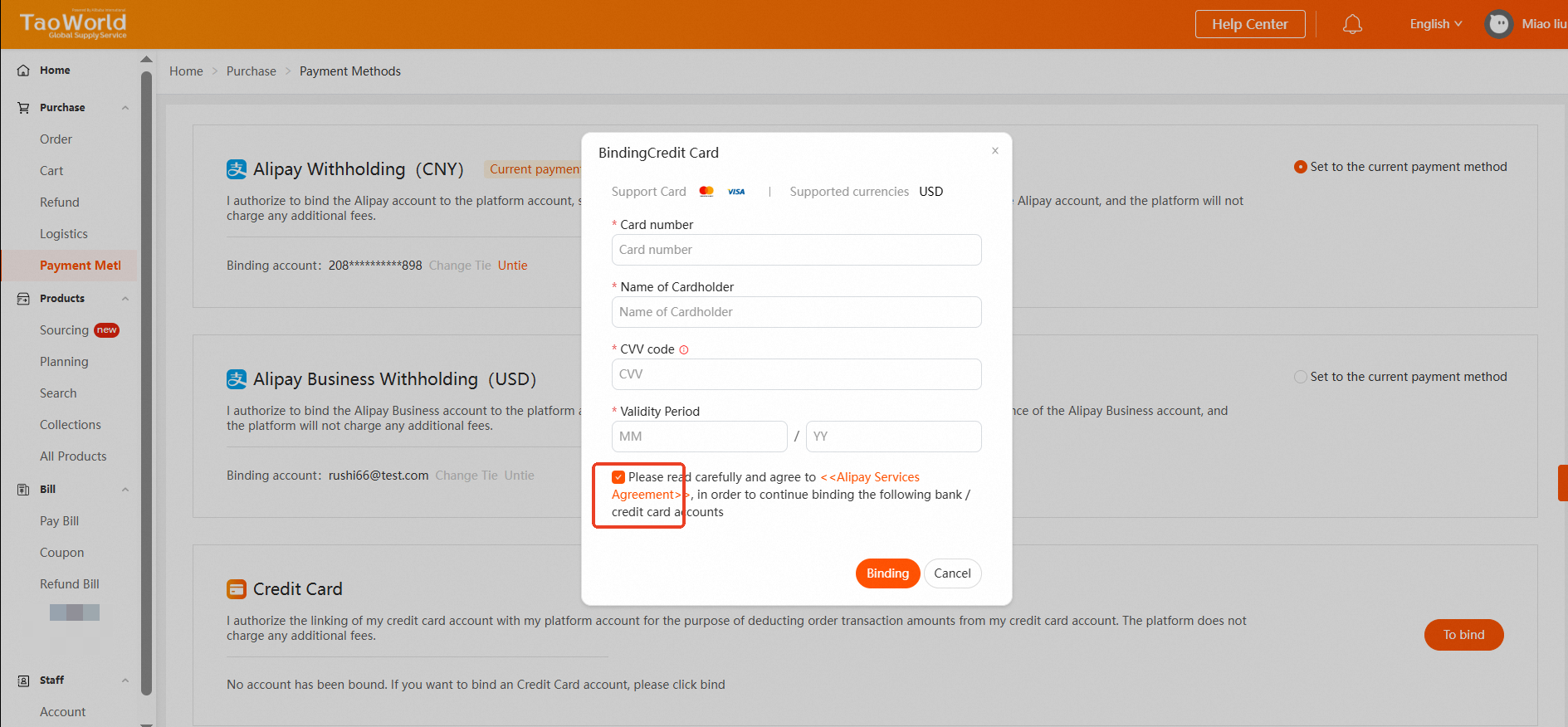
If the values are rejected, the dialog keeps you on the same form and shows:
- Please enter the correct credit card number
- Please enter the correct security code
- Please enter the correct validity period
The screenshot uses placeholder text (MMM, MM) only to trigger those messages. Enter the real card values, not those placeholders.
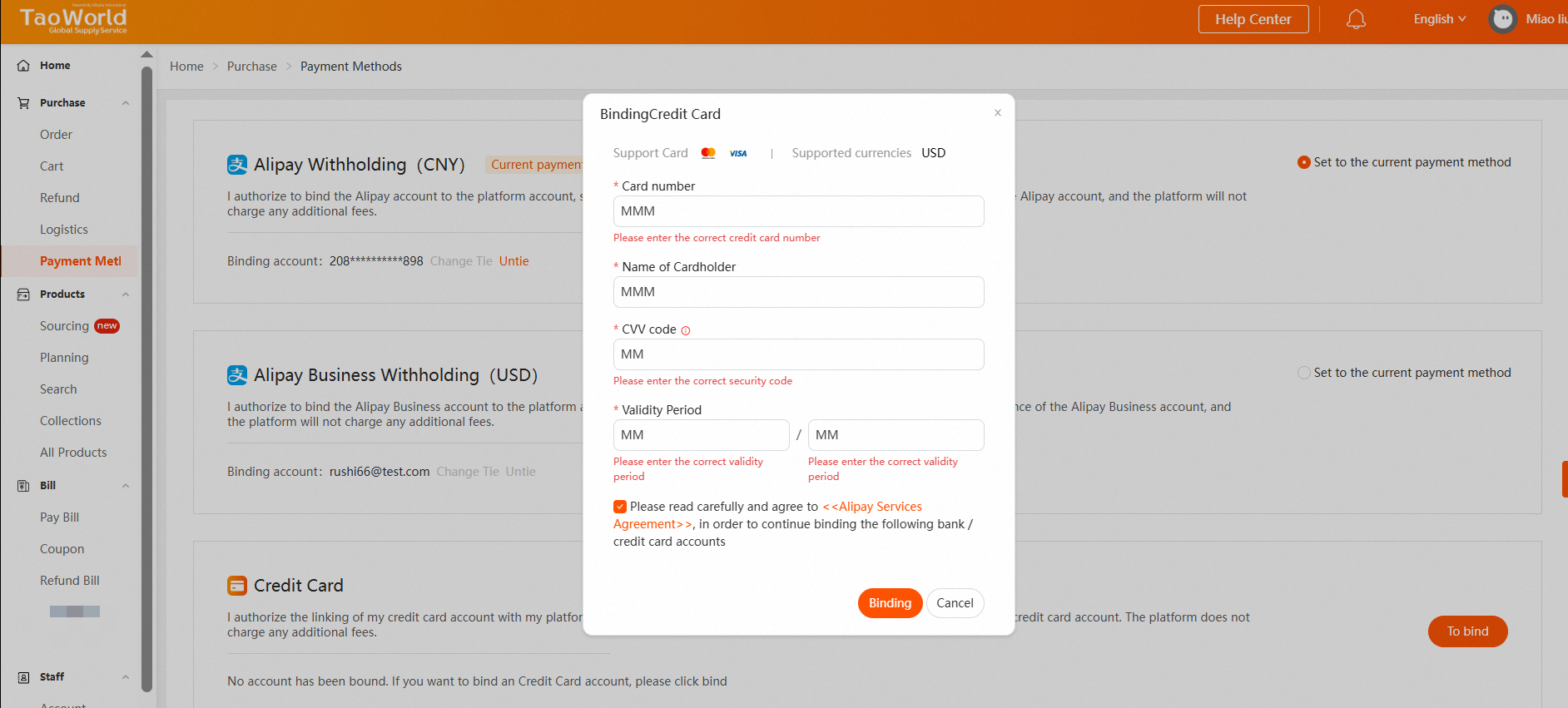
After a successful bind, Credit Card can show the badge Current payment method, a masked binding account, and Set to the current payment method selected. Confirm that badge. If another method is still current, select Set to the current payment method on the Credit Card row. Password-free withholding uses this current method.
Small text beside the masked account number is not legible enough to treat as an unbind control. Do not use it to remove the card. Unbind is covered below.
Bind sub-accounts
If the purchasing account has sub-accounts, binding the main account is not enough. Each sub-account that will pay must bind the card as well.
The Chinese console shows this on 支付方式 (Payment Methods), on the 信用卡 row. A failure line tells you to contact the card issuer and bind again. Under it, a banner says a sub-account has not finished binding, and that the sub-account cannot purchase normally until it does. The link is 去绑定> (Go bind).
On-screen banner:
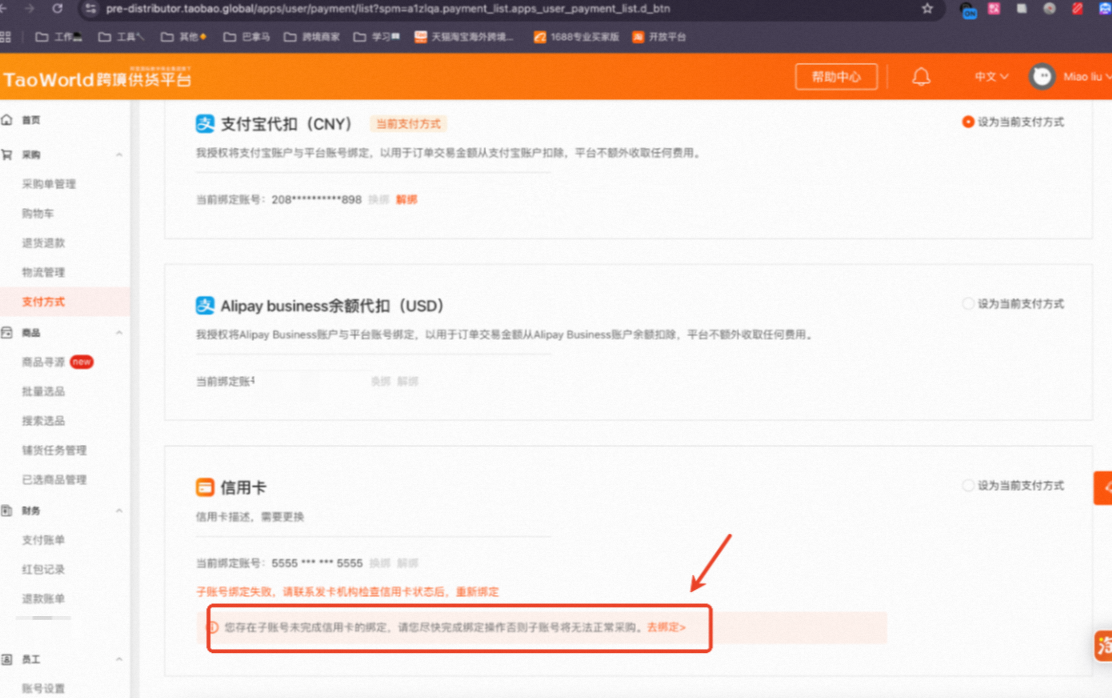
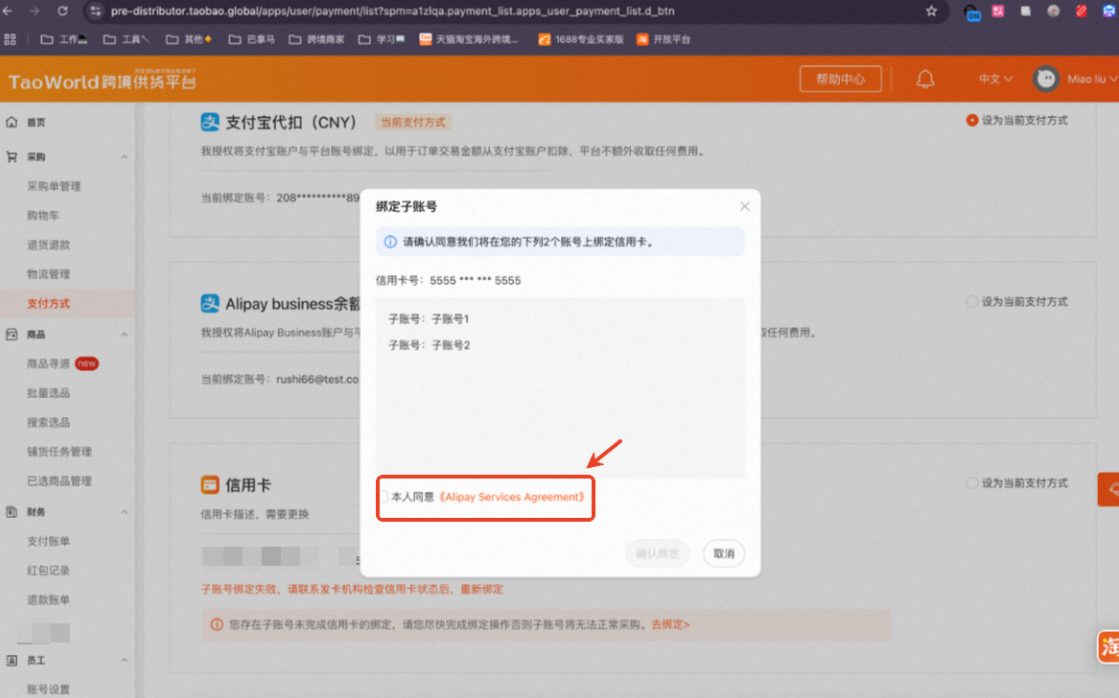
去绑定 opens 绑定子账号 (Bind sub-accounts). Confirm the prompt, which states how many accounts will receive the card. The dialog lists the masked card number and each sub-account (子账号). Check 本人同意《Alipay Services Agreement》 (I agree to the Alipay Services Agreement). Then use 确认绑定 (Confirm bind). 取消 cancels.
A sub-account without payment privilege can still look bound after this step and be unable to pay. Fix the privilege on the purchasing account; another bind does not grant it.
Pay an order
With Credit Card as the current payment method, a purchase order can be paid by card withholding without a second verification.
In the console order list, confirm payment shows 应付金额总计(CNY) (total amount due, CNY), then 信用卡代扣 (credit-card withholding) with the tag 免密支付 (password-free payment), and the masked 付款账号 (payment account). Confirm with 确认支付. 取消 leaves the order unpaid.
The screenshot of that panel is served from pre-distributor.taobao.global. Treat it as the purchasing-console flow, not as an HioBuy URL.
The same account state is what POST /v1/orders/pay uses. The API does not open this dialog, and it does not send the card details. If pay is refused because the amount was modified, or because the order used a red packet, change the order or the payment method in TaoWorld. Do not add a card field to the HioBuy body.
Unbind
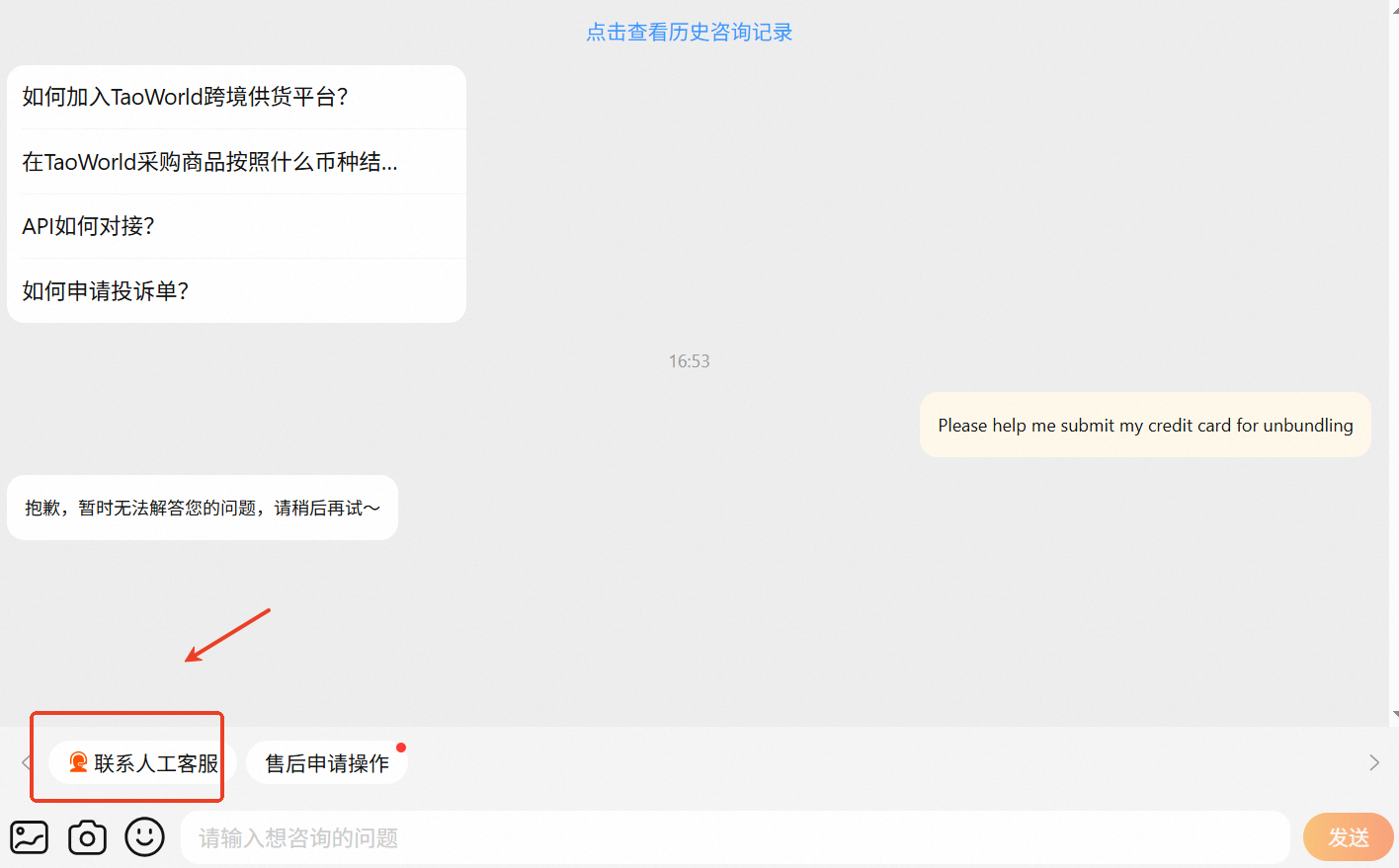
The screenshots do not show a self-serve unbind button that removes the card. Remove it by asking in-console platform support.
- Open Home > Purchase > Payment Methods.
- Open the in-console help entry. The panel title is Want to ask:. It lists suggested questions and ends with Ask Me.
- Suggested questions do not unbind a card. The same panel also shows 售后申请操作 (after-sales request). That chip is not shown completing an unbind by itself.
- In the chat, choose 联系人工客服 (contact human support). The input placeholder is 请输入想咨询的问题.
- Ask support to unbind the credit card. The screenshot uses this example: “Please help me submit my credit card for unbundling.”
The automated reply in that screenshot cannot answer the question (抱歉,暂时无法解答您的问题,请稍后再试~). That is why the human-support control is the step.
What HioBuy does and does not do
HioBuy pays an existing procurement order through the TaoWorld account’s current payment method. For Taobao that call is:
POST /v1/orders/pay with channel set to taobao and order_id set to the main order id.
HioBuy does not:
- Bind or store the card
- Accept a card number, cardholder name, CVV, or expiry
- Set Credit Card as the current payment method
- Bind sub-accounts or change payment privilege
- Unbind a card
- Bypass red-packet or modified-amount limits
Set the console up first. Then pay through the API.
Next steps
- In TaoWorld, bind the card on the main purchasing account and on every sub-account that will pay.
- Confirm Credit Card is Current payment method.
- Create the Taobao order, then pay it with
POST /v1/orders/pay. - To remove the card, use in-console support. Do not expect an unbind field on the API.
Docs: Pay order · Procurement orders overview.
Next step
If you already understand the workflow, move to the API reference for exact request and response fields, or open the developer console to create your application.
Ready to build?
Open the API documentation or create your HioBuy developer application.