 HioBuy
Track Packages on Your Own Site: HIOBuy Tracking Demo
Open-source Next.js demo that looks up normalized shipment status and tracking events via GET /v1/fulfillment/tracking — logistics, warehouse order, or client order number, key stays server-side.
For teams that already have a website or app, and need international package tracking on their frontend after warehouse fulfillment — not a white-label storefront, and not a C-end shopping widget.
You already have a site, or you are about to build one. Orders move through a China warehouse. Parcels leave on international channels. The extra piece some teams want is a tracking page the buyer (or the operator) can open on your domain: current status, shipping channel, and a clear event timeline. With the API key never leaving your server.
That is a fulfillment tracking problem, not a storefront-skin problem. HIOBuy powers the China-side warehouse and the tracking APIs behind it. Your backend looks up a shipment by a serial number you already have — logistics number, warehouse order number, or your own external shipment number — and returns a normalized response. The open-source demo is github.com/hiobuy/tracking-demo (MIT). Live demo: tracking.demo.hiobuy.com. The rest of this post is how to run it, what GET /v1/fulfillment/tracking actually does, and where the demo stops.
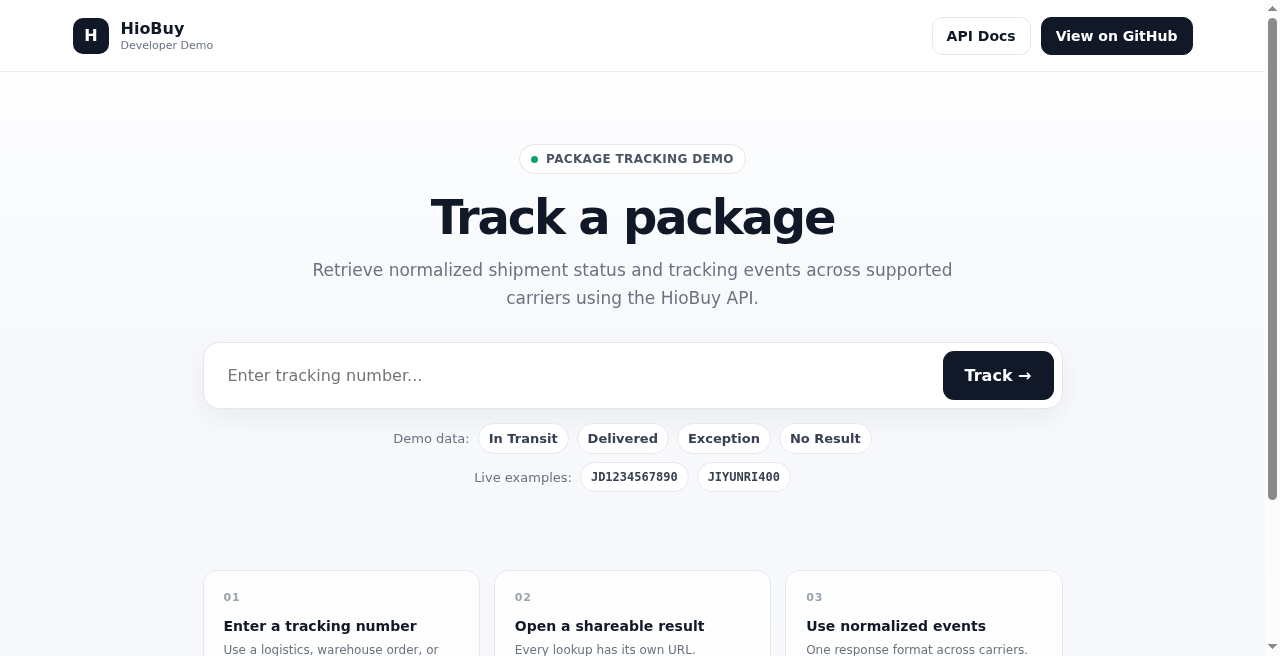
Welcome UI at tracking.demo.hiobuy.com. Headline: “Track a package.” Copy: retrieve normalized shipment status and tracking events. Demo-data shortcuts (In Transit, Delivered, Exception, No Result) exercise the UI without a live key; other numbers hit the live API when configured.
sn-based tracking vs shipment-id tracking vs domestic trace
Same developer portal. Different surfaces. Do not mix them.
| Integration | Endpoint | What it is for | This demo |
|---|---|---|---|
| sn-based international tracking | GET /v1/fulfillment/tracking?sn= | Lookup when HioBuy shipment ID is not known | Yes — primary |
| ID-oriented shipment tracking | GET /v1/fulfillment/shipments/{shipment_id}/tracking | When you already have HioBuy id or external_shipment_id | Mentioned; not primary |
| Domestic procurement trace | POST /v1/orders/logistics/trace | Seller → warehouse | No |
| Warehouse inbound packages | packages tracking | Inbound package timeline at the warehouse | No |
HIOBuy is the China warehouse and fulfillment layer. You still own the frontend, the URLs on your domain, and whatever you wrap around a tracking result. This post does not pitch a consumer tracking gadget. It is the B-end path: your app talks to Fulfillment tracking so a buyer on your site can follow a parcel after international shipping starts.
Canonical tracking reference: hiobuy.com/en/api-docs/fulfillment-tracking. Developer portal: developers.hiobuy.com. Related shipping-quotes guide (channels and estimates before you ship): Shipping Quotes Fulfillment API.
When you do not have a HioBuy shipment ID
Use the sn-based endpoint:
GET /v1/fulfillment/tracking?sn={sn}
Authorization: Bearer <server-only key>
sn may be:
- a logistics number (
logistics_sn) - a warehouse order number (
order_sn) - a developer-supplied external shipment number (
client_order_sn)
HioBuy forwards sn unchanged; the warehouse identifies the type. URL-encode sn when you build the query string. The endpoint requires the tracking:read scope.
When you already have a shipment id
The ID-oriented route remains available:
GET /v1/fulfillment/shipments/{shipment_id}/tracking
Path {shipment_id} accepts either the HioBuy shipment id or the external_shipment_id you supplied at create time. Numeric-only values are treated as warehouse shipment_id. Any value with a non-digit is treated as external_shipment_id. Prefix developer identifiers — for example shp_MY-INTL-ORDER-001 — because numeric-only values are reserved for HioBuy internal IDs.
The tracking-demo uses the sn-based endpoint as its primary path. The ID route is documented so you can choose the right call when your backend already stores a HioBuy shipment id.
What the demo actually does
One primary API. Mapped 1:1 to a local Route Handler.
| Purpose | HIOBuy API | Local demo endpoint |
|---|---|---|
| Package tracking lookup | GET /v1/fulfillment/tracking?sn= | GET /api/tracking?sn= |
What you get in the UI:
- Package tracking lookup
- Normalized shipment status
- Tracking event timeline
- Shipping channel information
- Shareable tracking result URLs
- Developer View: public proxy request, sanitized normalized response, identifiers, status/events,
request_id— Authorization never exposed - Built-in demo data without an API key for UI testing
It does not create a shipment, take payment, run domestic seller→warehouse trace, or show warehouse inbound package timelines. Those stay out of this repository on purpose.
Demo data caveat
Only the built-in demo-number shortcuts (In Transit, Delivered, Exception, No Result) use local responses. All other numbers hit the live API when HIOBUY_API_KEY is set. The public demo host is for illustration — do not point production traffic at it as a proxy.
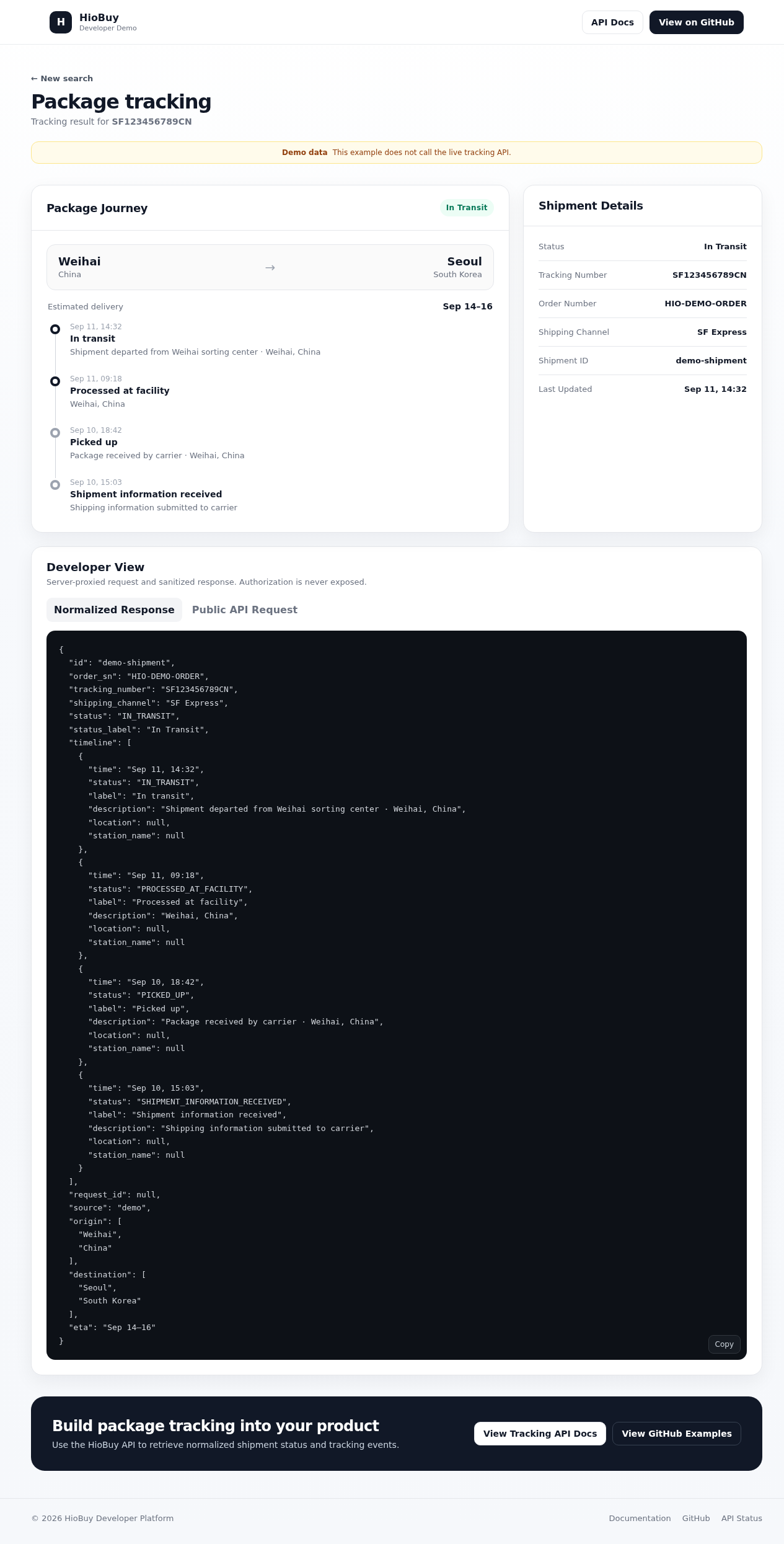
Demo data “In Transit” at tracking.demo.hiobuy.com. Yellow banner: this example does not call the live tracking API. Left: package journey and event timeline. Right: shipment details (status, tracking number, order number, shipping channel). Below: Developer View with sanitized normalized JSON — Authorization never shown.
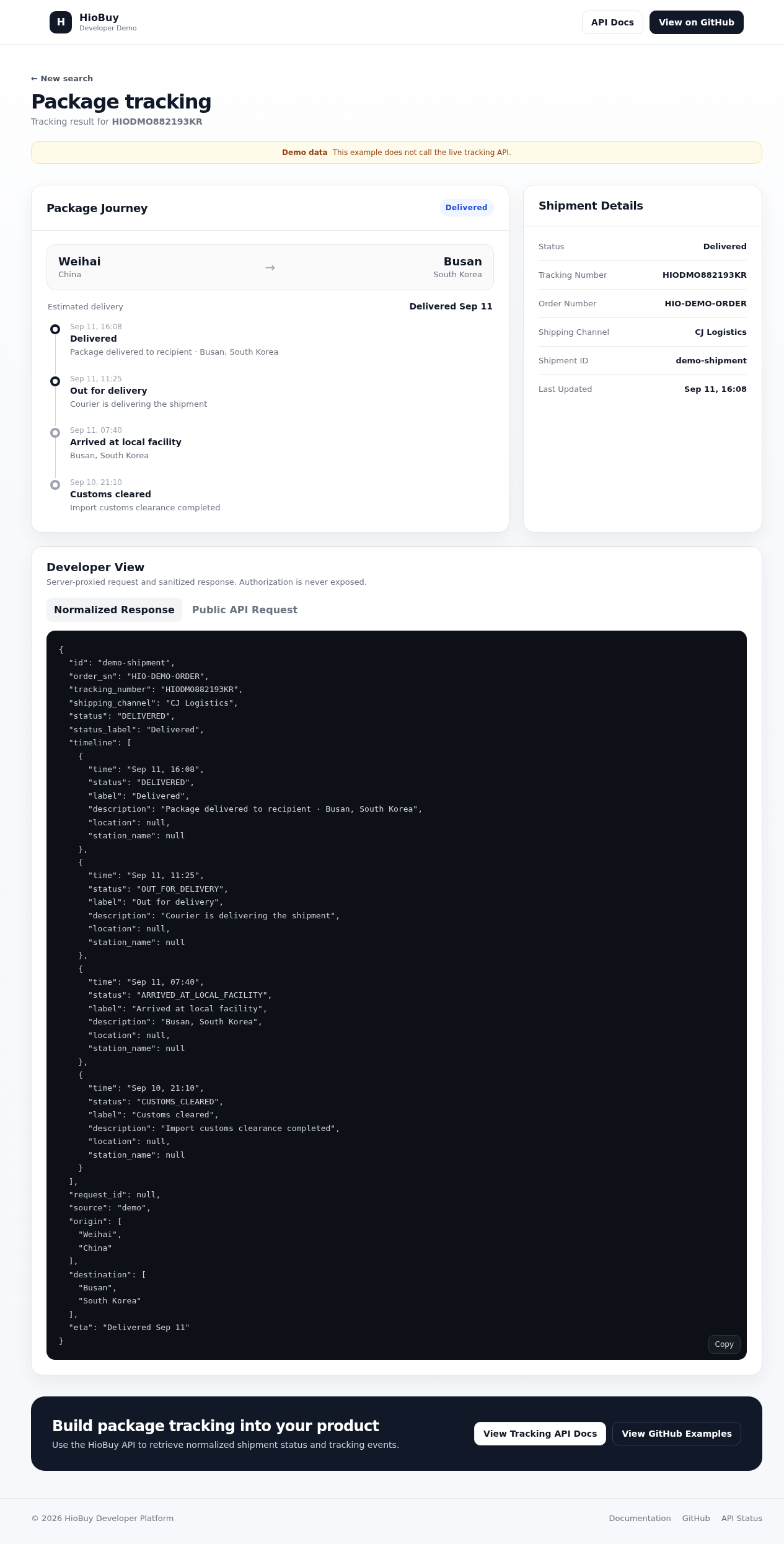
Demo data “Delivered” — same layout, status badge and timeline events updated through delivery. Useful for wiring your own UI against a stable response shape before you flip to live numbers.
Hands-on: get a key, clone, run
1. Get an API key
Create a developer account at developers.hiobuy.com, create an App, and issue an API key with the tracking:read scope. Without that scope you will see a permission error on the tracking route.
2. Clone the demo
MIT licensed. Next.js. Node.js 20 or newer, plus pnpm.
git clone https://github.com/hiobuy/tracking-demo.git
cd tracking-demo
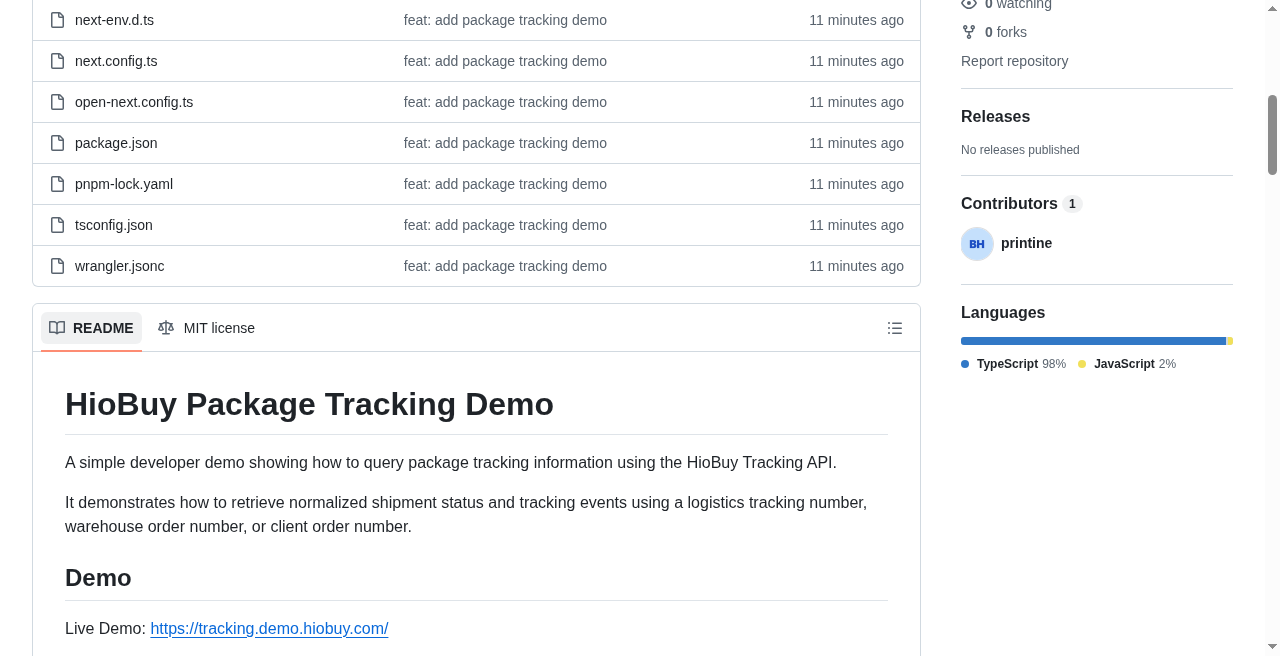
github.com/hiobuy/tracking-demo — MIT, Next.js / TypeScript. README links the live demo at tracking.demo.hiobuy.com.
3. Keep the key on the server
cp .env.example .env.local
Then set:
HIOBUY_API_KEY=your_api_key_here
Optional:
HIOBUY_API_BASE_URL=https://api.hiobuy.com
Never commit .env.local. Never put the key in frontend code, and never prefix it NEXT_PUBLIC_. The browser never calls HIOBuy directly.
4. Install and run
pnpm install
pnpm dev
Open http://localhost:3000. You should get the same tracking UI as the public demo, against your own App when a live number is entered.
Useful checks:
pnpm typecheck
pnpm test
pnpm build
How the request actually travels
Browser
   │  GET /api/tracking?sn={tracking-number}
   ▼
Next.js Route Handler  (app/api/tracking)
   │  Read server-only HIOBUY_API_KEY
   │  Authorization: Bearer <key>
   ▼
HIOBuy Fulfillment API
   GET /v1/fulfillment/tracking?sn=
   ▼
JSON to the browser  (no API key)
The local proxy accepts sn, adds the Bearer key on the server, and forwards to upstream GET /v1/fulfillment/tracking?sn=. Frontend code should call /api/tracking, not the HIOBuy host.
If you already have a frontend in another stack, keep the same split: secret on the server, one thin proxy, your UI as the only thing users see.
Errors the demo route surfaces
The Route Handler normalizes common failures (demo behavior — useful when you mirror the pattern):
| Condition | Demo / local code | HTTP |
|---|---|---|
Invalid sn length | INVALID_TRACKING_NUMBER | 400 |
| Missing API key | TRACKING_NOT_CONFIGURED | 503 |
| Bad credentials | TRACKING_AUTH_ERROR | 401 |
Missing tracking:read | TRACKING_PERMISSION_ERROR | 403 |
| Not found | TRACKING_NOT_FOUND | 404 |
| Upstream / network failure | TRACKING_NETWORK_ERROR | 502 |
The server also checks both HTTP status and the JSON body. Some warehouse business failures return HTTP 200 with "success": false. Treat that as failure, not as a successful empty track.
Response fields and timeline
Docs describe a detail-aligned subset. The demo normalizes toward that shape for the UI:
| Field | Role |
|---|---|
id | Shipment identifier |
order_sn | Warehouse order number |
shipping_channel | {code, name} |
international_tracking | {tracking_number, carrier} |
status | Business status code |
status_label | Display label |
timeline[] | Events: {code, title, occurred_at} |
request_id | Correlation id from the API |
Statuses from the docs include PENDING, WAIT_PAYMENT, WAIT_SHIP, SHIPPED, SIGNED, and CANCELLED — cite the fulfillment tracking docs as the source of truth. The demo UI also shows local demo states (In Transit, Delivered, Exception, No Result) for the built-in example numbers only.
Example shape (aligned with docs; demo may normalize display fields for the UI):
{
  "id": "118",
  "order_sn": "JIYUNRI1358",
  "shipping_channel": {
    "code": "CJ-SEA",
    "name": "E-commerce Sea - CJ"
  },
  "international_tracking": {
    "tracking_number": null,
    "carrier": null
  },
  "status": "PENDING",
  "status_label": "Pending",
  "timeline": [
    {
      "code": null,
      "title": "Order created",
      "occurred_at": "2026-08-23 11:14:58"
    }
  ],
  "request_id": "req_xxx"
}
Wire your UI to status / status_label and timeline[] rather than scraping free-text carrier pages. That is the point of a normalized fulfillment tracking response.
Developer View and shareable URLs
Every successful lookup in the demo can open as its own result URL — useful for sharing a track with an operator or for linking from your own order page while you prototype.
Developer View shows:
- the public proxy request (
GET /api/tracking?sn=…) - the sanitized normalized response
- identifiers, status, events, and
request_id
It never exposes the Authorization header or the raw API key. That is the pattern to copy: your users see your domain; your server holds the key.
Where it stops
This demo stops at read tracking. It does not:
- create or pay for a shipment
- quote channels or freight (see the shipping quotes guide and the shipping-quotes demo)
- trace domestic procurement (seller → warehouse)
- replace warehouse inbound package timelines
If you need estimates before you ship, start with shipping quotes. If you need status after the parcel is on an international channel and you hold a logistics number, warehouse order number, or client order number — this tracking path is the one.
Links
- Live demo: tracking.demo.hiobuy.com
- Source (MIT): github.com/hiobuy/tracking-demo
- API docs: Fulfillment tracking
- Developer portal: developers.hiobuy.com
- Related: Shipping Quotes Fulfillment API
Next step
If you already understand the workflow, move to the API reference for exact request and response fields, or open the developer console to create your application.
Ready to build?
Open the API documentation or create your HioBuy developer application.